ChatGPT Chrome extension: what it does in your tabs and what the risks are
Since 15 October 2026, the ChatGPT extension for Chrome can read your open tabs and, in Work mode, fill in forms, send messages and download files on sites where you are already signed in. It is useful, and it is also the broadest permission you can give an assistant. This article explains what it does, how you control it and what I would not let it do.

What is the ChatGPT Chrome extension?
It is OpenAI’s official extension that brings ChatGPT into your browser. It opens ChatGPT in a side panel next to the page you are on. Since the update on 15 October 2026, it can also read your open tabs and act in them, including on sites where you are already signed in.
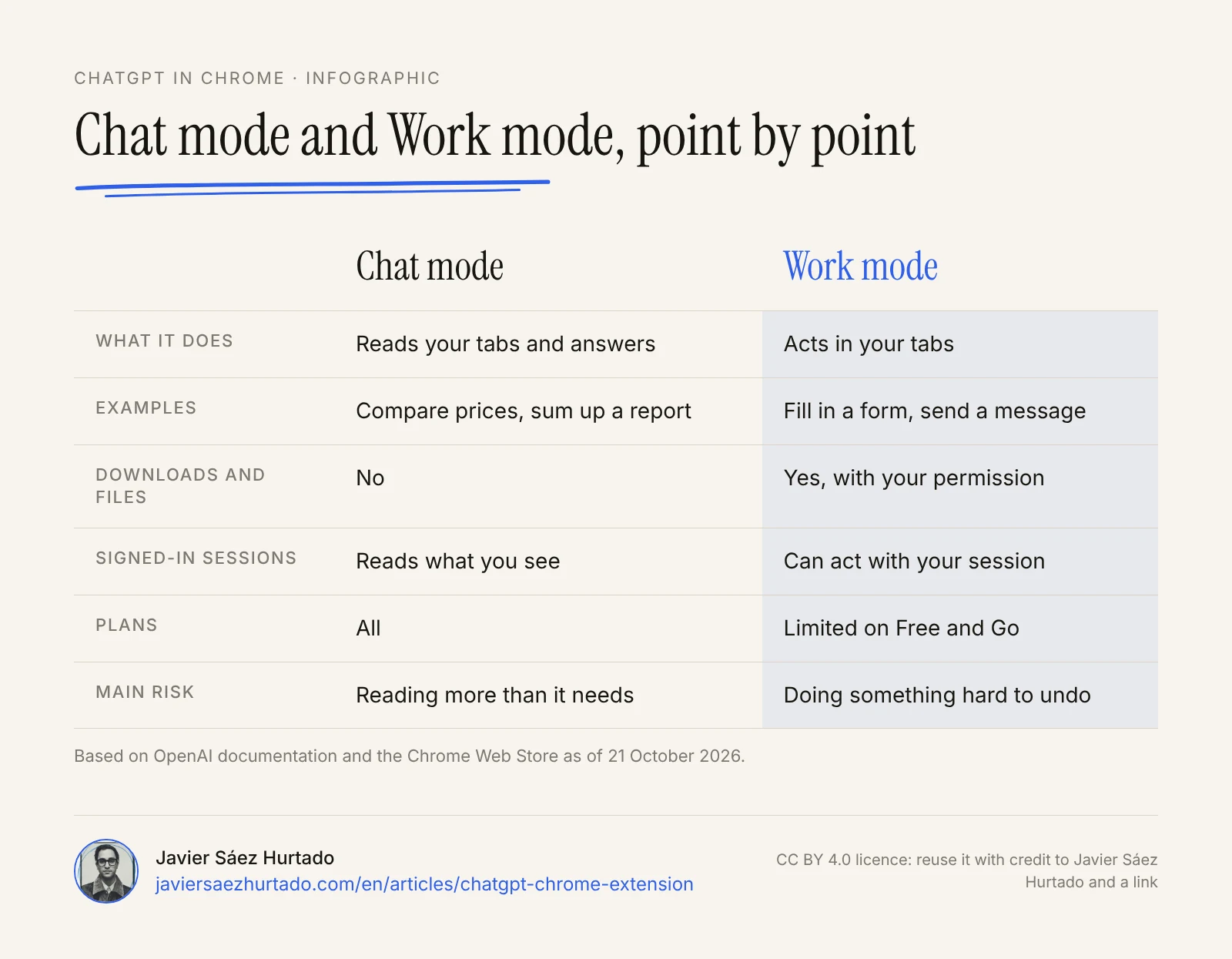
- Chat mode
- ChatGPT reads your tabs and answers. It compares, sums up or explains, and it does not touch anything.
- Work mode
- ChatGPT’s agent acts in your tabs. It fills in forms, sends messages, downloads files and groups tabs.
ChatGPT now has three parts: Chat, Work and Codex. The extension brings the first two into the browser. Work is the agent side of ChatGPT, the one I described in inside OpenAI agents: it does not just answer, it carries out a task.
The extension itself is not new. What it can do is. OpenAI announced the update on X on 15 October, saying the full power of ChatGPT was “now in your browser”. The Chrome Web Store listing, updated again on 22 October, describes it as a way to “control your browser with ChatGPT” and showed about 8 million users on 30 October.
What changed on 15 October?
Until now, the extension was mostly a way to open ChatGPT next to a website. With the update, ChatGPT can work across several tabs at once and do things in them, with no copy and paste.
The examples from OpenAI, as reported by Android Authority and PPC Land, are everyday ones. Compare sofas open in several stores by size, price, delivery time and returns. Fill in the form for a new dentist. Collect quotes from several suppliers into a spreadsheet. Find receipts in Gmail and upload them to an expenses site.
There are three concrete changes:
- Mention the browser. In a chat you can point to Chrome, or to one tab, so ChatGPT uses it as context.
- Side panel with your full history. You see your chats without leaving the site you are on.
- Work in the background. According to the listing, ChatGPT works “without ever taking over” the tab you are using.
Eleven days later, on 26 October, OpenAI released GPT-6.1 Terra, a model built for computer use that is available in ChatGPT Work on the Plus, Pro, Enterprise and Edu plans. OpenAI does not say which model runs the extension, so I do not assume it does, but it shows where Work is heading: more on-screen tasks at a lower cost.
What happened to ChatGPT Atlas?
Atlas, OpenAI’s own browser, stopped working on 9 August 2026. OpenAI announced this on 9 July, the same day it launched ChatGPT Work, and pointed users to the Chrome extension. Atlas launched in October 2025 for macOS only and never reached Windows or mobile.
The move makes sense. People are more likely to install an extension than to switch browsers. Since 31 August, the extension also works in Microsoft Edge, Brave, Opera and Vivaldi. Opera has no side panel, so tasks there start from the desktop app. Atlas bookmarks and history did not move to Chrome on their own.
How do you install it and turn it on?
You install it from the Chrome Web Store and set it up from the ChatGPT desktop app. OpenAI’s documentation lists these steps:
- Update the ChatGPT desktop app (Mac or Windows) and open Settings, then Computer Use.
- Choose Chrome and click install. It takes you to the Chrome Web Store listing. Check that the publisher is OpenAI, because there are look-alike extensions.
- Accept the permissions and go back to the app. Chrome should show Manage with the toggle on.
- Open a Work chat and mention the browser with @. Use the Chrome profile where you installed the extension.
To upload files from Chrome, turn on “Allow access to file URLs” in the extension’s details. OpenAI also notes that availability can depend on the rollout and on your workspace settings.
Is it free? Plans and limits
The extension is available on every plan, including Free. What changes is the room you get in Work mode. OpenAI’s pricing page, checked from Andorra on 30 October 2026, shows limited ChatGPT Work access on Free and Go (desktop app only), expanded access on Plus (desktop, web and mobile) and longer sessions on Pro. The prices shown that day were €8 a month for Go, €23 for Plus and from €103 for Pro.
There is some confusion here. The announcement says “available for all ChatGPT plans” under the download link, and several outlets read that tab control needs at least Plus. My reading of the documentation is that every plan can try Work, with very different limits. If you plan to use it every day, check your own account first.
What permissions does it ask for, and what happens to your data?
At install, Chrome shows the extension’s permissions, and they are broad: read and change data on all sites, history, bookmarks, downloads, notifications, tab groups, messaging with the desktop app and debugger access. Beyond that, ChatGPT applies its own checks.
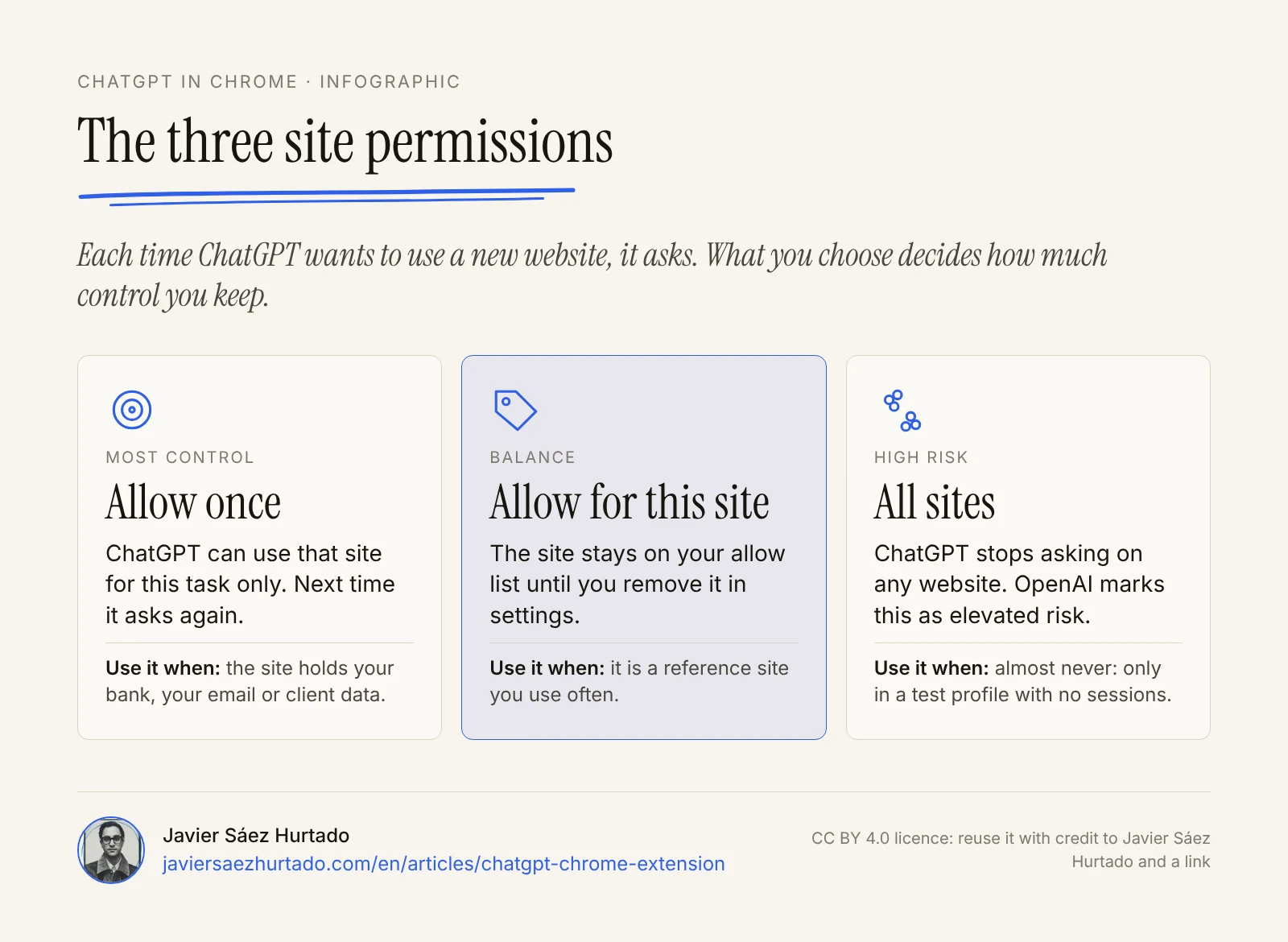
- For each new website, ChatGPT asks: allow once, allow for this site, allow for all sites, or decline. OpenAI marks “all sites” as elevated risk.
- Browser history needs your permission every time. There is no “always allow” option.
- Downloads and uploads also need your permission.
- Allow and block lists live in Settings, Computer Use, Manage. In business workspaces, admins can limit browser use, websites, file transfers and history access.
On data, OpenAI says it does not keep a separate full log of what the agent does in the browser. What it reads is stored when it becomes part of the chat (page text, screenshots or messages), and your ChatGPT data controls apply. If memory is on, it is used in these tasks too.
What are the risks?
The main risk is prompt injection: text that a website hides so the agent does something you did not ask for. OpenAI’s own documentation says to treat page content, selections and transcripts as untrusted, and warns that a misleading page could send data from your history somewhere it should not go.
There are three other practical risks:
- Your sessions are its sessions. When the agent works on a site where you are signed in, it acts as you. A mistake there is not a weak summary. It is a message sent or a form submitted in your name.
- Websites change. Pop-ups, bot checks and dynamic pages can make the agent click the wrong button.
- The listing is not convincing everyone yet. The extension had an average rating of 2.3 out of 5 in the Chrome Web Store on 30 October (1.8 on 21 October). Ratings do not measure safety, but they show the experience still has rough edges.
OpenAI has not published prompt injection figures for the extension. Anthropic does publish them for its own Chrome extension, and says that with its safeguards no attacks succeeded in its tests with several of its latest models. These are the company’s own numbers, with no independent check.
ChatGPT, Claude and Gemini in Chrome compared
The three big model companies now all have an agent that works in Chrome. They are alike in the basics: they read the page, click, type and ask before sensitive steps. They differ on plans, browsers and availability in Europe.
AI agents in Chrome, point by point
Official information as of 30 October 2026
| ChatGPT (OpenAI) | Claude in Chrome (Anthropic) | Gemini (Google) | |
|---|---|---|---|
| What is new | Tab control, 15 Oct 2026 | Open to all paid users, 26 Aug 2026 | Browsing in your own Chrome, since Jul 2026 |
| Plans | All; Work limited on Free and Go | Paid plans | Google AI Pro or Ultra |
| Browsers | Chrome, Edge, Brave, Opera and Vivaldi | Chrome only | Chrome on desktop |
| Controls | Permission per site; history always asks | Injection detection and a check on each action | Confirmation before each task |
| Safety figures | Not published | 0% successful attacks in its tests | Not published |
| Europe | No published limit | No published limit | Tasks not available in the EEA or Switzerland |
If you want an agent that keeps working when you close the laptop, on its own cloud computer rather than in your browser, I compared two of them in Grok Bot vs OpenAI dots. The difference matters: a separate computer does not have your open sessions.
And if you are thinking of switching browsers, for example because you used Arc, which stops working on 22 December, I compare Dia, Chrome with Gemini, Comet, Edge and other options in Arc browser is shutting down.
Is it available in Europe?
OpenAI does not publish country limits for the extension or for Work mode in Chrome, and you can install it from Spain. On the listing, OpenAI identifies itself as a trader under European Union rules.
Do not take it for granted everywhere, though. OpenAI has left the European Economic Area out of similar features before, such as dots on the Pro plan, or computer history when it first launched. Andorra is not named in the documentation.
Spain also has a new reference point. On 27 October the Spanish Data Protection Agency (AEPD) published ten tips for delegating tasks to AI assistants and agents, and they fit this extension closely: grant only the permissions each task needs, do not press “always allow” without understanding what it covers, require confirmation before sending, paying or signing up, and know how to stop the agent. It also warns that a page or an email can hide instructions, even as white text on a white background, and that no measure removes that risk completely.
What does it mean for companies in Europe?
For a company, the extension changes one important thing. The agent no longer works in a separate space. It works inside each employee’s browser, with their open sessions in email, the CRM or the bank. That makes it more useful and harder to control.
- Decide before each employee decides. On Business and Enterprise, admins can limit browser use, allowed websites, file transfers and history access. It is worth doing before the extension spreads on its own.
- Use separate profiles. A Chrome profile for agent work, without banking or personal email open, cuts down a lot of what can go wrong.
- Data protection. If the agent reads pages with customers’ personal data, that data enters the chat. Check with whoever handles GDPR in your company which sites it can read and under which data controls.
- Leave a trail. OpenAI does not keep a separate log of browser actions, so important tasks should end in something a person can review: a draft, a sheet or a summary that someone approves.
My view: what I would let it do and what I would not
I would use it without worry to read: compare tabs, sum up a long report or pull data from several sites into a table. There, the worst mistake is a bad summary, and you notice it.
To act, I would go step by step. I would let it fill in forms and stop before submitting, and only on sites I allow once. I would not let it send messages to other people in my name or touch high-value accounts, such as the bank or email with clients. It is not distrust of the technology. A message sent in a second can take a long time to fix, and talking to other people is something I prefer not to delegate. It is the same line I hold in my essay on what you would let an agent do without looking (in Spanish): anything you cannot undo goes through a person.
And I would never pick “allow for all sites”. That option turns every site you visit into a place where the agent can act without asking you.
With purchases I would do what I explain in whether it is safe to let an AI agent shop for you: let it build the cart, and confirm the payment myself.
Transparency: Convexify, the firm I founded, is part of the OpenAI Select Partner programme. This article is based on public documentation from OpenAI, Anthropic and Google and on the linked sources.
Key takeaways
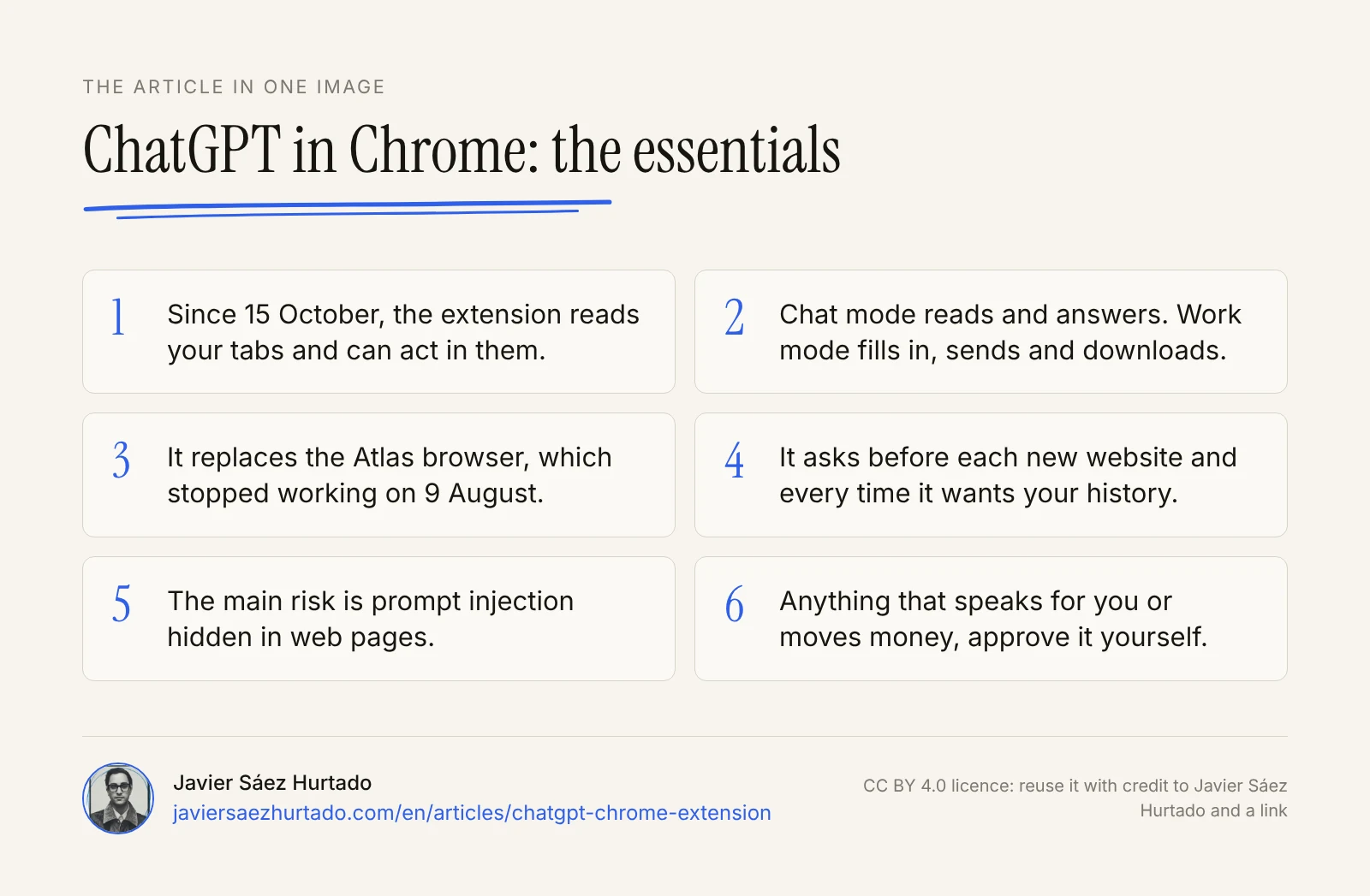
- Since 15 October 2026, the ChatGPT Chrome extension reads your tabs and, in Work mode, acts in them.
- It replaces Atlas, which stopped working on 9 August, and runs in Chrome, Edge, Brave, Opera and Vivaldi.
- It is on every plan; Work mode is limited on Free and Go and broader on Plus and Pro.
- It asks before each new website, every time it wants your history and before downloads or uploads.
- The main risk is prompt injection: anything that speaks for you or moves money, approve it yourself.
- Spain’s data protection agency gives the same advice in its 27 October tips: the agent prepares, the person approves.
The article in one image
Frequently asked questions
How do I install the ChatGPT extension in Chrome?
Install it from the Chrome Web Store, from the “ChatGPT” listing published by OpenAI (check the publisher, as there are look-alike extensions). In the ChatGPT desktop app, go to Settings and then Computer Use, choose Chrome, accept the permissions and check that it shows “Manage”. Then you can mention the browser with @ in a Work chat.
Is the ChatGPT Chrome extension free?
You can install the extension on every plan, including Free. Reading tabs and the side panel work on all plans. Work mode, which acts in your tabs, has limited access on Free and Go (desktop app only), expanded access on Plus (desktop, web and mobile) and longer sessions on Pro, according to OpenAI’s pricing page on 30 October 2026.
What can ChatGPT do in my Chrome tabs?
In Chat mode it reads your open tabs to answer, for example to compare prices across stores or sum up a report. In Work mode it can act: fill in forms, send messages, download files, group tabs or move data from a website into a spreadsheet, including on sites where you are already signed in.
Is the ChatGPT Chrome extension safe?
It has sensible controls: it asks before each new website, every time before it reads your history and before downloads or uploads. But it asks for broad permissions at install, and no company has solved prompt injection on the web. Use it in a Chrome profile without sensitive sessions, and do not let it send or pay without a review.
Is the ChatGPT Chrome extension available in Europe?
OpenAI does not publish country limits for the extension or for Work mode in Chrome, and you can install it from Spain. OpenAI has left the European Economic Area out of other features, such as dots on the Pro plan, so check in your account what you actually have. In Spain, the data protection agency (AEPD) published tips for using agents on 27 October that warn against pressing “always allow” without understanding what it covers.
What happened to ChatGPT Atlas?
Atlas, the OpenAI browser launched in October 2025 for macOS only, stopped working on 9 August 2026, according to OpenAI’s release notes. Its features moved to the ChatGPT extension for Chrome and the desktop app. Atlas bookmarks and history did not move over on their own.
Sources
- ChatGPT on X, Chrome extension update announcement (15 Oct 2026)
- Chrome Web Store, OpenAI’s ChatGPT extension listing (checked 30 Oct 2026)
- ChatGPT Learn, Browser extension (OpenAI documentation)
- OpenAI Help Center, using the built-in browser in the ChatGPT desktop app
- OpenAI Help Center, ChatGPT release notes
- OpenAI, ChatGPT plans (checked 30 Oct 2026)
- Android Authority, ChatGPT can now do more in Google Chrome (19 Oct 2026)
- PiunikaWeb, OpenAI rolls out major Chrome extension upgrade (16 Oct 2026)
- PPC Land, ChatGPT gains control of Chrome tabs (Oct 2026)
- Anthropic, Claude in Chrome is generally available (26 Aug 2026)
- Google, Gemini Apps tasks help page
- OpenAI Developer Community, GPT-6.1 Terra: fast and capable computer use at a lower price (26 Oct 2026)
- AEPD (Spanish Data Protection Agency), ten tips for delegating tasks to AI assistants and agents (27 Oct 2026, in Spanish)