AI study guide · Module 5. Agents and automation
Lesson 5 of 5 in English
ChatGPT Skills: what they are, how to build one and custom GPTs
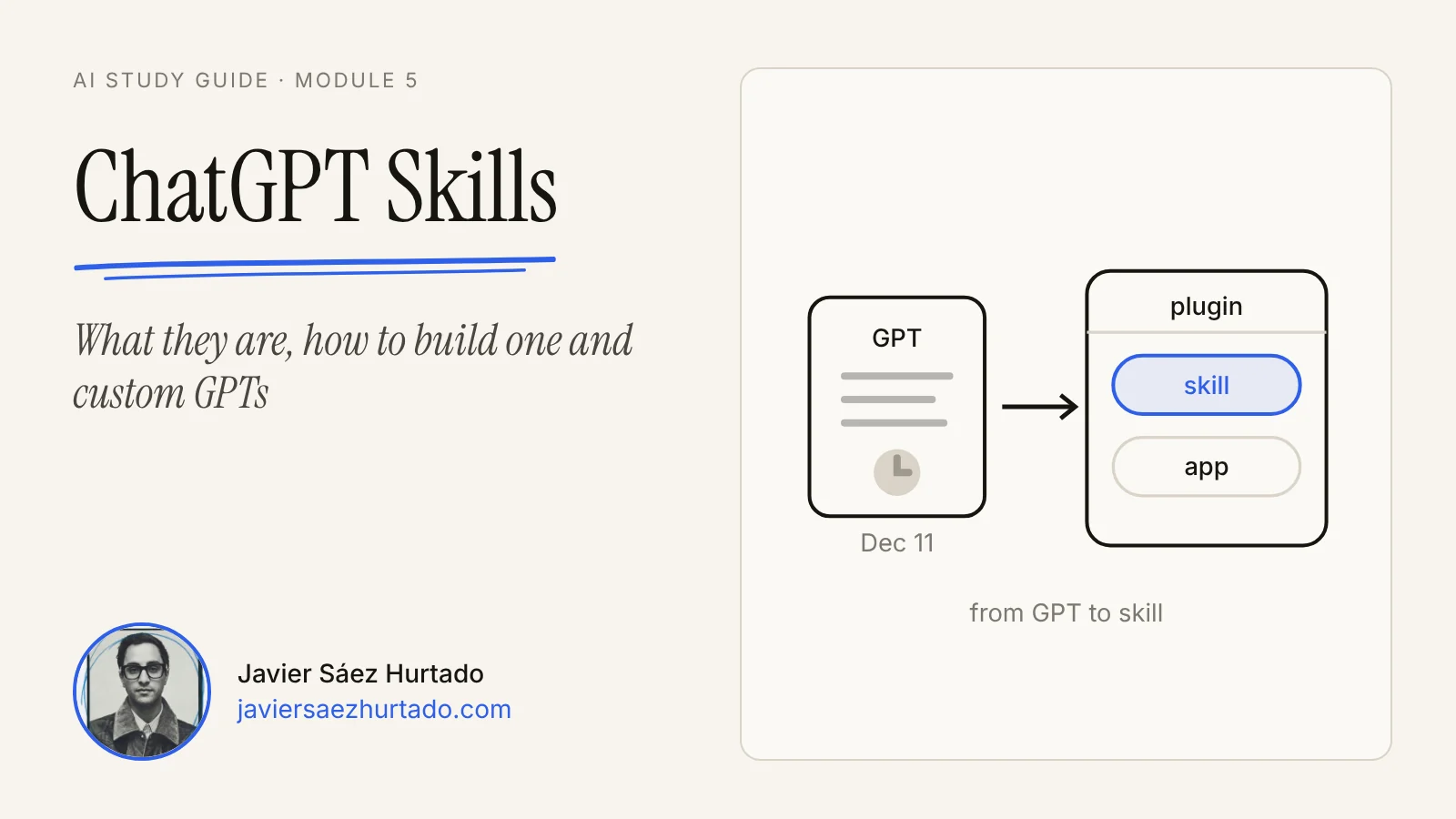
ChatGPT skills are folders of instructions that teach ChatGPT to do one task the same way every time: write emails in your voice, run a market research with your format, or quote prices from a fixed list. ChatGPT uses a skill on its own when your request matches, or when you call it with @. They replace custom GPTs, which OpenAI retires on 11 December 2026. Here is which plans have them, three ways to create one with examples to copy, how plugins package them, and what to do with your GPTs now.
What are skills in ChatGPT?
A skill is a package of instructions that extends what ChatGPT knows how to do. Inside, it is a folder with a text file, SKILL.md, that holds three things: a name, a description of when to use it and the steps to follow. It can also carry files: a template, a price list, some examples or a small script.
The practical part is that you do not have to remember to switch it on. Once installed, ChatGPT uses it on its own when your request matches the description, and it can combine several in the same task. If you want to be sure, type @ in the message box and pick the skill.
The idea is not OpenAI’s. Anthropic launched skills in Claude in October 2025 and published the format as an open standard, Agent Skills, that December. ChatGPT and Gemini now use the same folder structure, so a well written skill is not locked into one app. I explain the format and how it works in all three in Claude Skills.
Which ChatGPT plans have skills?
On 17 November 2026, the plan comparison on the ChatGPT pricing page, seen from the US, shows a check mark next to Skills on all four individual plans: Free, Go, Plus and Pro.
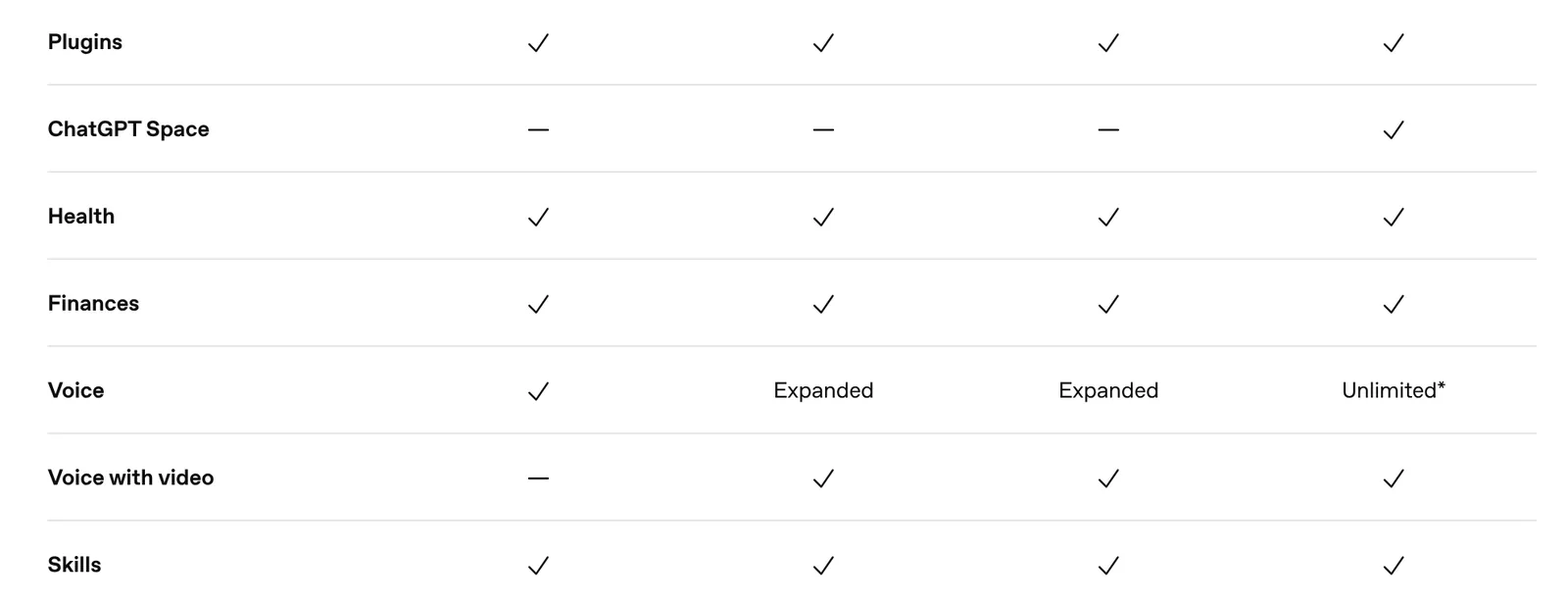
Two details matter more than the check mark:
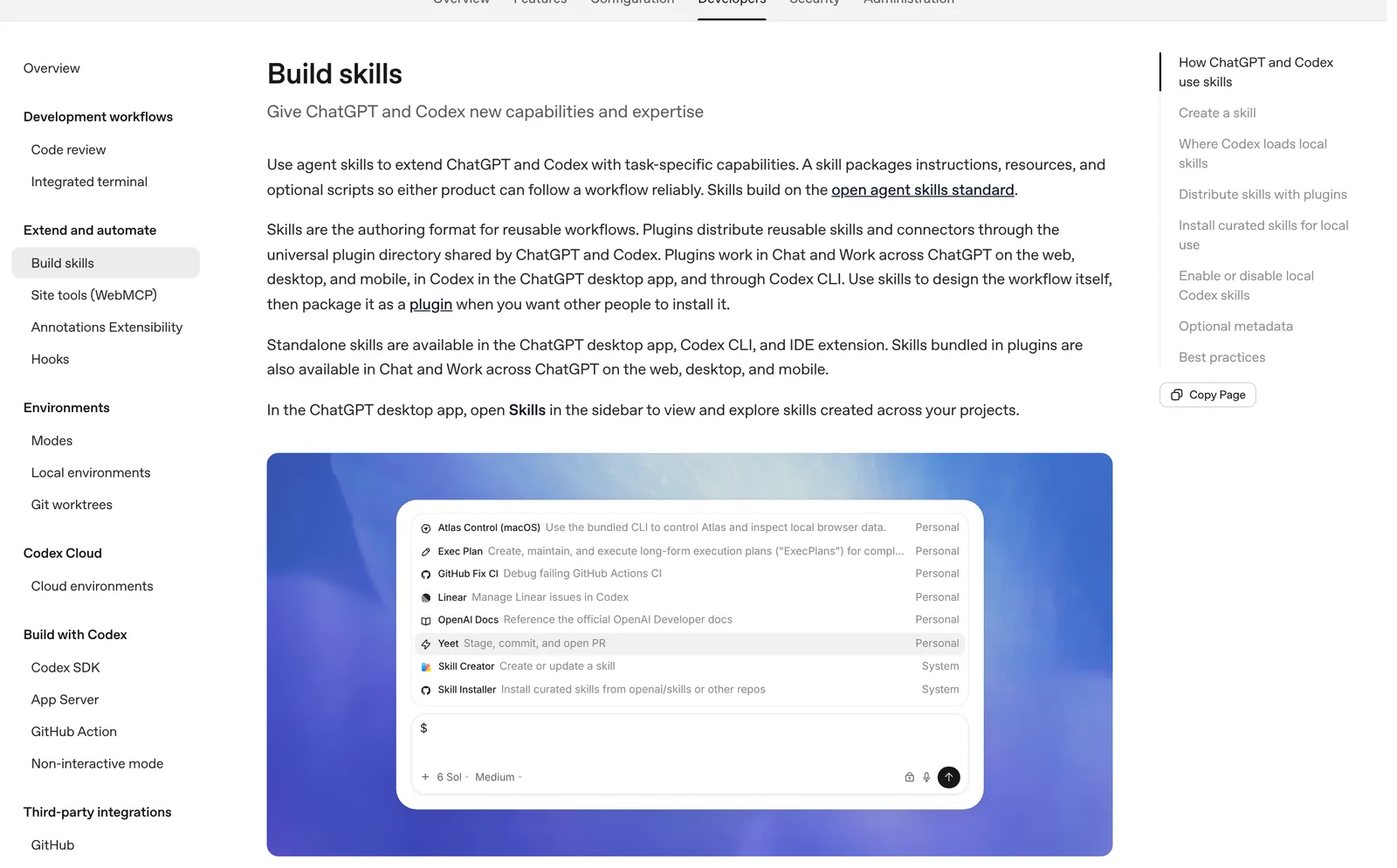
- Where they work. OpenAI’s documentation says standalone skills are available in the ChatGPT desktop app (plus Codex in the terminal and in code editors), and that skills bundled in plugins are also available in Chat and Work across ChatGPT on the web, desktop and mobile. In the desktop app, Skills in the sidebar shows the skills you have.
- Business plans. OpenAI’s help center has described skills for Business, Enterprise, Healthcare and Edu, where an admin decides whether people can use, upload, share or publish skills for the whole company. On those plans, what you share with a skill is not used to train OpenAI’s models by default.
The pricing page and the help center do not fully match yet, and these features move every few weeks. The quick test is to open ChatGPT, look for Skills in the sidebar or type @ in a new chat, and see what your account offers.
How to create a skill in ChatGPT
OpenAI’s documentation gives three ways to create a skill:
- With the built-in creator. In ChatGPT Work, type
@skill-creatorand describe what you want. It asks what the skill does, when it should trigger and whether it should be instructions only (the default) or include scripts. - By recording yourself. If a workflow is easier to show than describe, Record & Replay captures you doing it, inspects the steps and drafts a skill from the demonstration.
- By hand. Create a folder with a
SKILL.mdfile that starts with anameand adescription, followed by the instructions.
The three examples below use one method each. Copy them and change what does not fit the way you work.
Example 1: a skill that writes your emails (with the creator)
The first example is a skill that drafts your work emails the way you write them. It is the best one to start with, because ChatGPT learns almost everything from your own examples.
- Open Work and type
@skill-creator. - Explain the goal and paste three or four real emails of yours (with no customer details):
I want a skill that drafts my work emails in my style. Here are four emails I wrote. Notice how I greet people, how I open, how long I write and how I sign off.
- Answer its questions: how formal you are, the length you prefer, phrases you would never use. What you cannot explain, it learns from the examples.
- Read what it writes. For my emails it would end up something like: a short greeting, the answer in the first line, three paragraphs at most, no “we apologize for any inconvenience”, and a specific question at the end if I need a reply.
- Test it with a real case, for example a customer asking for a discount. If something does not sound like you, say so and ask it to update the skill.
Example 2: market research in your format (by hand)
The second example you write by hand, because what matters is the structure and you already know it. The description is the part ChatGPT reads to decide whether to use the skill, so it says what it does and when, with the words you would use to ask for it:
---
name: market-research
description: Runs market research in a fixed format. Use it when I ask to analyze a market, a set of competitors or an industry.
---

## Structure
1. Summary in five lines.
2. Market size, with its source.
3. Five competitors in a table: price, offer and audience.
4. Trends.
5. Risks.
End with the linked sources.

## Rules
- Every number has a source.
- Anything that is an estimate is marked "estimate".
- If you cannot find a figure, write "no data": do not make it up.
If you have a report template, put it in the same folder and mention it in the instructions. Test it with something like “analyze the market for electric cargo bikes in the US”. Keep the folder: the same file works in Claude and Gemini.
Example 3: quotes for a dental office (with a reference file)
The third example carries data that has to be exact, the prices, so they go in a separate file. The office and its prices are made up. The folder has two files. First, SKILL.md:
---
name: dental-quotes
description: Prepares quotes for Example Dental using its price list. Use it when I ask for a quote or the price of a treatment.
---

1. Use only the prices in prices.md.
2. If something is not on the list, write "ask the office".
3. Return a table with treatment, units, price and total.
4. Add how long the quote is valid: 30 days.
5. Always end with this note: "Estimate only; the dentist decides the treatment."
And prices.md, with a simple table: cleaning $120; filling $180; root canal $1,000; crown $1,200; whitening $400.
Now if you ask “a quote for a cleaning and two fillings”, it returns the table with each price taken from the list, the total ($480) and the closing note. When prices change, you edit prices.md and leave the instructions alone. One warning: in a dental office these are health records. Never put patients’ names or details in a skill, and keep patient data in the systems your practice uses for it.
How do you share skills? Skills and plugins
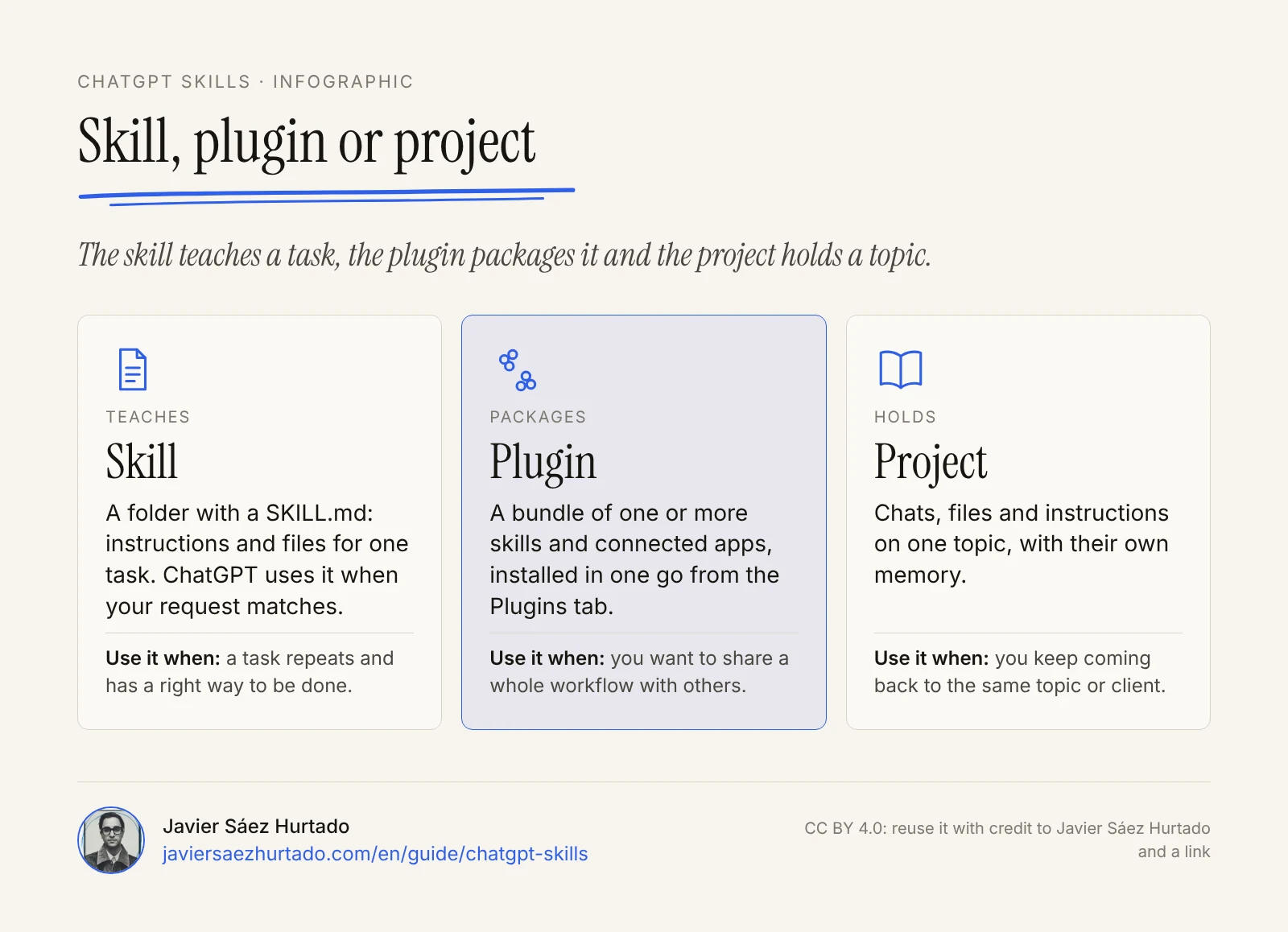
When a skill works, you will want to share it. That is what plugins are for. In OpenAI’s words, skills are the authoring format for reusable workflows, and plugins distribute skills and connectors through one plugin directory shared by ChatGPT and Codex. A plugin can hold one or more skills, connected apps and MCP tools, and people install it in one go from the Plugins tab. Plugins work in Chat and Work on the web, desktop and mobile.
Do not confuse them with projects, which are something else: a project keeps the context of one topic (its chats, files and instructions), while a skill teaches a task that works in any chat. They combine well.
I go deeper into how skills, plugins, tools and knowledge fit together in Inside OpenAI agents.
What happens to custom GPTs?
OpenAI retires custom GPTs on 11 December 2026 on all plans. Enterprise workspaces with an approved delay have until 11 February 2027, and in affected Enterprise workspaces, creating new GPTs ended on 26 October 2026.
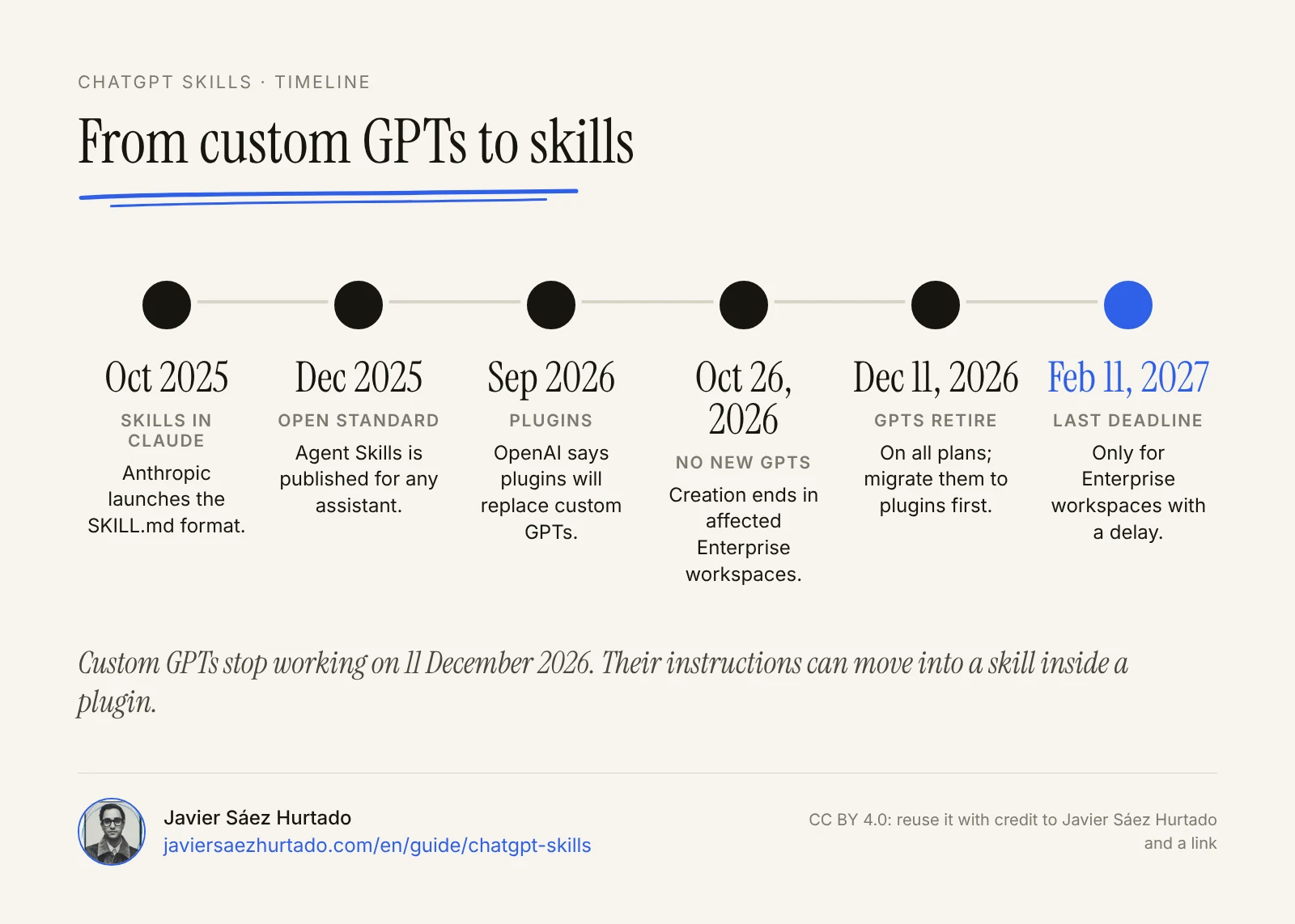
OpenAI’s answer is to migrate them to plugins:
- It is not automatic. When migration is available in your account, My GPTs shows an option to migrate a GPT to a plugin. Only the GPT’s creator or an admin can do it.
- What moves: the instructions become a skill, the knowledge files become reference files and connected apps become the plugin’s apps.
- What does not: the chosen model, custom actions (you will need to rebuild them, for example with your own MCP server), sharing settings and drafts. The last published version is the one that migrates.
- The original GPT keeps working until the retirement date but becomes read-only: further changes go into the plugin.
- Your conversations with GPTs are kept after the retirement.
Builders have also reported that some knowledge files that worked in GPTs were rejected during migration because of different file limits. Another reason not to leave it for the last week.
If you only use someone else’s GPT, you do not have to migrate anything: watch for notices in the GPT and from its creator. And if you have GPTs of your own, save their instructions and files now. You can keep them as a folder with a SKILL.md, which will also work in Claude and Gemini.
Skill, GPT, project or plugin: which one for what?
With so many similar names, it is easy to get confused. This table sums up what each piece is for in ChatGPT, as of 17 November 2026:
The pieces of ChatGPT, side by side
From OpenAI’s documentation and help center, November 2026
| Piece | What it is | Use it when |
|---|---|---|
| Skill | Instructions and files for one task; ChatGPT uses it when it fits, or when you type @ | A task repeats and has a right way to be done |
| Plugin | A package of one or more skills, connected apps and MCP tools | You want to bring a whole workflow to your team |
| Project | Chats, files and instructions on one topic, with their memory | You keep coming back to the same topic or client |
| Custom GPT | A separate assistant with its own instructions and files | Not anymore: it stops working on 11 December 2026 |
Common mistakes with ChatGPT skills
Most skills that fail do so because of how they are written, not because of the tool:
- A vague description. “Helps with emails” does not say when to use it, so ChatGPT either ignores it or uses it at the wrong time. Use the words you would ask with, and put the key use first: OpenAI notes that descriptions may be shortened when many skills are installed.
- One skill for everything. Emails, reports and quotes in one skill all come out halfway. Three small skills are better.
- Fixed data inside the text. Prices, addresses or deadlines work better in a file you can update without touching the instructions.
- Not saying what to do when something is missing. If you do not, ChatGPT will fill the gap with something plausible. In the dental example, “ask the office”; never a made-up price.
- Customer or health data inside the skill. A skill gets copied and shared: do not keep anything in it you would not show.
- Installing other people’s skills without reading them. Automatic checks help, but they do not replace your own review, especially if the skill has code.
- Not testing it. Three normal cases and one odd one before you trust it, and again every time you change it.
My take
If you have custom GPTs, I would not wait for December. I would migrate one, the one I use most, and test it now with my usual tasks and one hard case. That way you find out in time what the custom action did that did not carry over, or which permissions you need to give again.
For new skills, I would start with the task I repeat most and give it real examples: three of your own emails teach more than a page of instructions. I would put anything that must be exact, like a price, in a file, and on anything that leaves the company (an email, a quote, a report) I would always keep the last review.
And I would keep a copy of every skill in a folder of my own, outside ChatGPT. With the same format it also works in Claude and Gemini, and you do not depend on a feature changing plan or name, as just happened with GPTs. If you are still choosing between assistants, start with Claude vs ChatGPT or ChatGPT vs Gemini.
Disclosure: Convexify, the firm I founded, is part of the OpenAI Select Partner program. This lesson comes from OpenAI’s public documentation and the linked sources, and I review it when the features change.
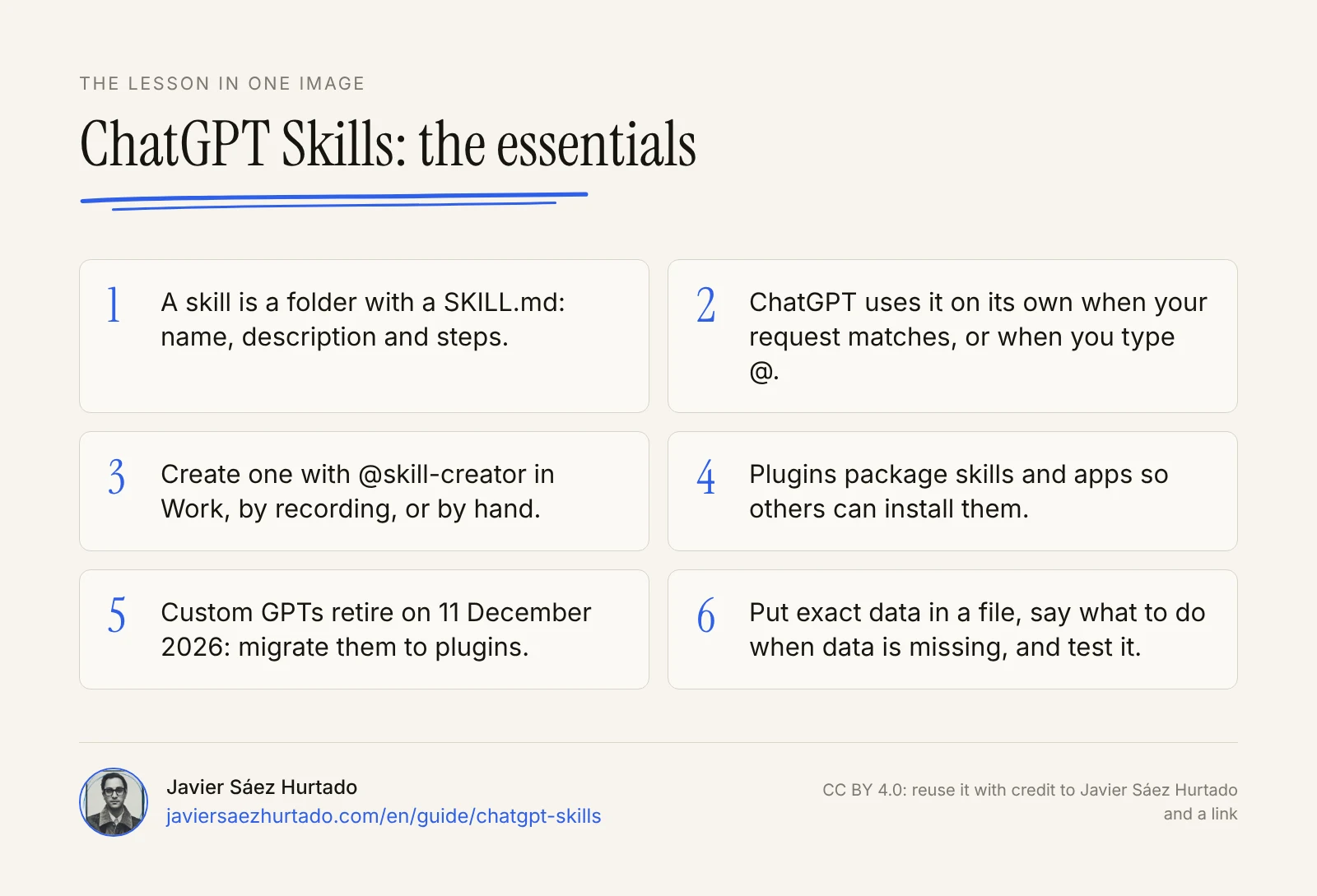
The lesson in one image
FAQ
Does ChatGPT have skills like Claude?
Yes. ChatGPT uses the same open format as Claude, Agent Skills: a folder with a SKILL.md file with a name, a description and instructions, plus optional files and scripts. A well written skill works in ChatGPT, Claude and Gemini, with small adjustments.
Which ChatGPT plans have skills?
On 17 November 2026, the plan comparison on the ChatGPT pricing page shows Skills on Free, Go, Plus and Pro. OpenAI’s help center has described skills for business plans (Business, Enterprise, Healthcare and Edu), where an admin can turn them on or off, so check Skills in your own account. According to OpenAI’s documentation, standalone skills live in the ChatGPT desktop app, and skills inside plugins work on the web, desktop and mobile.
How do I add skills to ChatGPT?
The simplest way is to install a plugin that includes them, from the Plugins tab. To create your own, use the built-in creator in ChatGPT Work by typing @skill-creator, record yourself doing the task with Record & Replay, or write a folder with a SKILL.md file by hand. In the ChatGPT desktop app, Skills in the sidebar shows the skills you have.
How do I use a skill in ChatGPT?
You usually do not have to do anything: ChatGPT picks a skill when your request matches its description. To force it, type @ in the message box and choose the skill. If it does not pick it up when you expect, rewrite the description with the words you use when asking.
What is the difference between a skill and a plugin?
The skill is the instructions for a task. The plugin is the package that distributes it: it can hold one or more skills, connected apps and MCP tools, and people install it in one go. You design the workflow as a skill and package it as a plugin when you want others to use it.
What happens to my custom GPTs?
OpenAI retires custom GPTs on 11 December 2026 (11 February 2027 for Enterprise workspaces with an approved delay). Migration is not automatic: from My GPTs you can migrate a GPT to a plugin, which turns its instructions into a skill and its knowledge files into reference files. The chosen model, custom actions and sharing settings do not move over, and the original GPT becomes read-only. Your past conversations with GPTs are kept.
Are skills from other people safe?
Not always. A skill can carry instructions and code, and a malicious one could try to reach your data. Install skills and plugins from sources you trust, read their files before you use them, especially scripts, and give them only the app connections they need.
Sources
- ChatGPT Docs, Build skills (checked on 17 Nov 2026)
- ChatGPT Docs, Plugins (checked on 17 Nov 2026)
- ChatGPT, Pricing and plan comparison (checked from the US on 17 Nov 2026)
- OpenAI Help Center, Skills in ChatGPT
- OpenAI Help Center, Plugins in ChatGPT and Codex
- OpenAI Help Center, Custom GPT retirement and migration FAQ
- OpenAI on YouTube, Plugins in ChatGPT
- Visual Studio Magazine, OpenAI replacing custom GPTs with plugins (28 Sep 2026)
- Campus Technology, OpenAI discontinuing custom GPTs and moving to plugin architecture (5 Oct 2026)
- Agent Skills, open standard and specification
- Anthropic, Equipping agents for the real world with Agent Skills (16 Oct 2025, updated 18 Dec 2025)