AI study guide · Module 5. Agents and automation
Lesson 4 of 5 in English
Claude Skills: what they are and how to build your own
Claude Skills are folders with instructions, templates and, if needed, small scripts that teach Claude to do one task the same way every time: meeting notes, a report in your format, study flashcards. Claude only opens a skill when it needs it, and the same format now works in ChatGPT and Gemini, where it is replacing custom GPTs and Gems. Skills are on every Claude plan, the free one included. Here is how they work and how to build your first one in ten minutes.
What are Claude Skills?
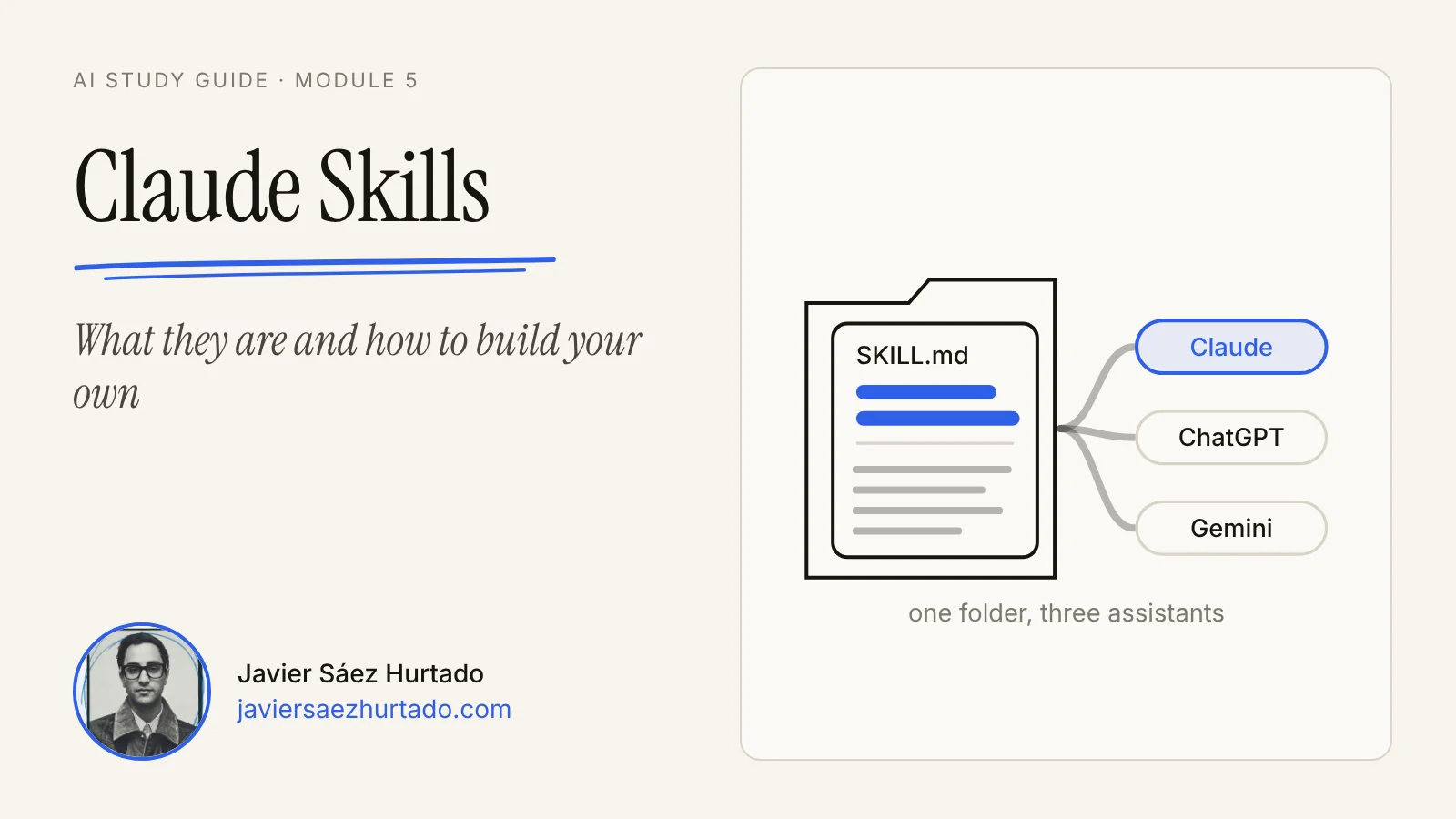
Claude Skills are packages of instructions that teach Claude to do one task the same way every time. Each skill is a folder with a text file called SKILL.md, which holds its name, a description of when to use it and the steps to follow. It can carry more: a template, examples of a good result, a style guide or a small program that does part of the work.
The idea is simple. If every Monday you paste your meeting notes into Claude and explain, again, how you want the minutes (decisions first, tasks in a table, no adjectives), that is a skill you have not written yet. You write it once and, from then on, you just paste the notes: Claude recognizes the task, opens the skill and follows your steps.
Anthropic launched skills on 16 October 2025 and in December 2025 published the format as an open standard, Agent Skills, so any assistant could use it. In Claude they work in the app, in Cowork and in Claude Code. Since then OpenAI has brought them to Codex and ChatGPT, and Google to Gemini. This lesson says Claude Skills because that is how most people search for them, but what you learn works in all three.
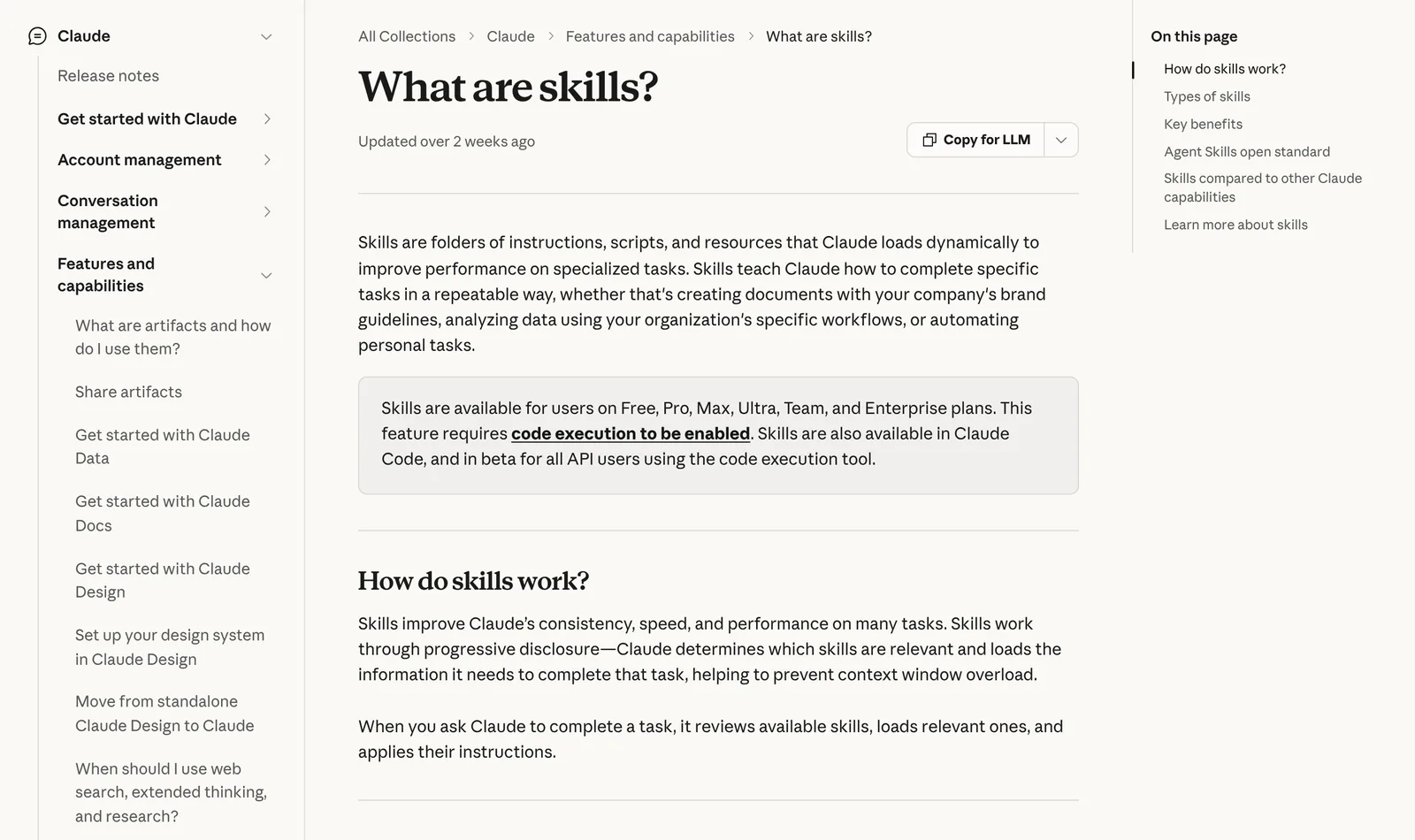
There are four kinds of skills in Claude:
- Anthropic’s. They come built in and Claude uses them only when needed: they are what let it create and edit Word documents, Excel spreadsheets, PowerPoint presentations and PDFs.
- Yours. You (or your company) create them for your own processes: your report format, your brand rules, the way you prepare a class.
- Your organization’s. On Team and Enterprise plans, owners can hand out skills to the whole team, and members can share theirs with colleagues.
- Partners’. Companies such as Notion, Figma and Atlassian publish skills built to work with their connectors.
How does a skill work inside?
A skill works in layers: Claude does not read all of it until it needs it. At the start of a chat it only knows the name and description of each skill you have turned on. When what you ask matches a description, it opens that SKILL.md and follows the instructions. And if those instructions mention other files in the folder (a template, an example), it opens them only when they are needed.
Anthropic calls this progressive disclosure, and it is the key to everything. A language model works with a limited memory, the context window: if you loaded all your instructions in every message, it would fill up fast and answer worse. With skills you can have dozens installed and only the one in use takes up space.
This is the main file. At the top, between two lines of dashes, go the name and the description; below them, the instructions in plain text:
---
name: meeting-minutes
description: Turns meeting notes into minutes with decisions, tasks, owners and dates. Use it when I paste notes or a meeting transcript, or ask for minutes.
---

# Meeting minutes

1. Read all the notes before writing.
2. List the decisions, one per line.
3. List the tasks with their owner and due date.
...
The description is the most important part, because it is the only thing Claude reads to decide whether the skill fits. It has to say what the skill does and when to use it, with the words you would use when asking (“minutes”, “meeting notes”, “transcript”). In Claude, the name can be up to 64 characters and the description up to 200.
A skill can also carry scripts, small programs that always do something the same way: fill in a PDF form, check a format, add up a total. Claude runs them without having to read them, which is why skills need code execution turned on. You do not need them to start: most useful skills are just well written text.
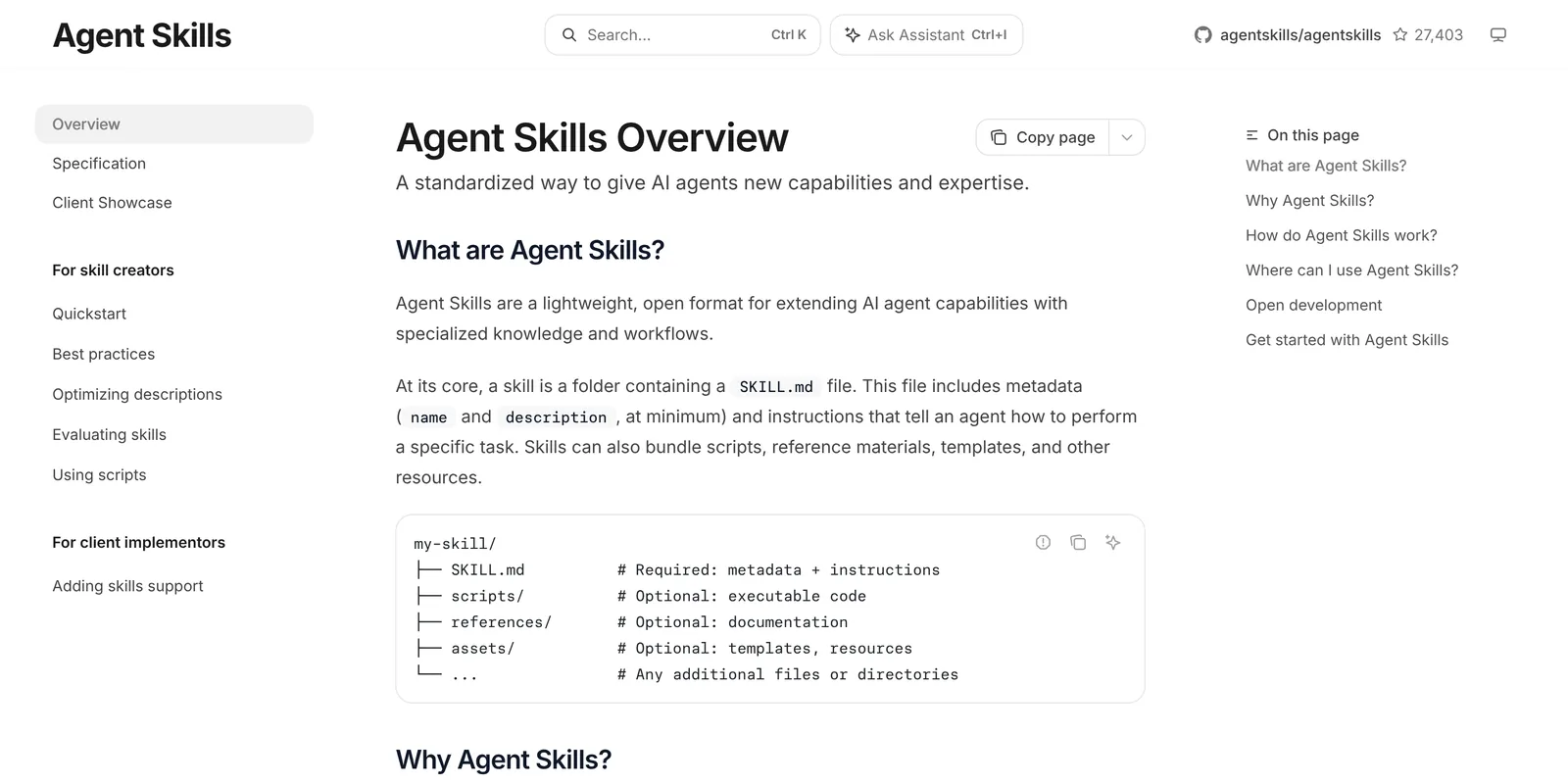
SKILL.md and optional scripts, references and assets.What are skills good for? Ideas for work, home and school
Skills are for any task you repeat that has a right way to be done. The clearest sign is catching yourself correcting the same thing over and over (“I said no tables”, “the title goes in caps”) or pasting the same long prompt every week. Some ideas that work well:
| Area | Skill | What it does |
|---|---|---|
| Work | Meeting minutes | Turns loose notes into decisions, tasks, owners and dates |
| Work | Email in your voice | Drafts replies with your greetings, your length and what you never say |
| Work | Monthly report | Applies your template, your sections and the way you present numbers |
| Work | Contract review | Always checks the same list: deadlines, penalties, renewal, data |
| Home | Weekly meal plan | Plans meals with what is in the fridge and builds the grocery list |
| Home | Trip planner | Builds an itinerary with your budget, your pace and what you dislike |
| Home | Household expenses | Sorts receipts and transactions into the same categories every month |
| School | Flashcards | Turns notes into questions and answers at your level |
| School | Essay feedback | Grades with a fixed rubric and explains each mistake |
Notice that none of them is “help me with work”. A skill works when the task is narrow: it has a clear input (some notes, a receipt) and an output you can recognize when it is right.
I work this way myself. The lessons in this guide are prepared with a skill that holds the steps, the checks and the limits (what never goes live without my review, which facts must be checked). It does not write for me, but it makes every lesson go through the same process so nothing gets forgotten.
Skill, project, instructions or connector: which one for what?
Claude, ChatGPT and Gemini have several ways to customize them, and they are easy to mix up. The short rule: the project knows, the skill teaches and the connector gives access.
- Custom instructions (or preferences). They apply to all your chats: your language, your tone, how you like answers. General, and always on.
- Project. A space with documents and instructions on one topic (a class, a client, a move) that load every time you chat inside it. Background knowledge.
- Skill. A procedure for a task that switches on only when needed and works in any chat, inside or outside a project.
- Connector (MCP). A connection to an app or your data: calendar, email, Notion, a database. It runs on MCP, the standard that connects assistants to other apps. It gives access, but does not say what to do with it.
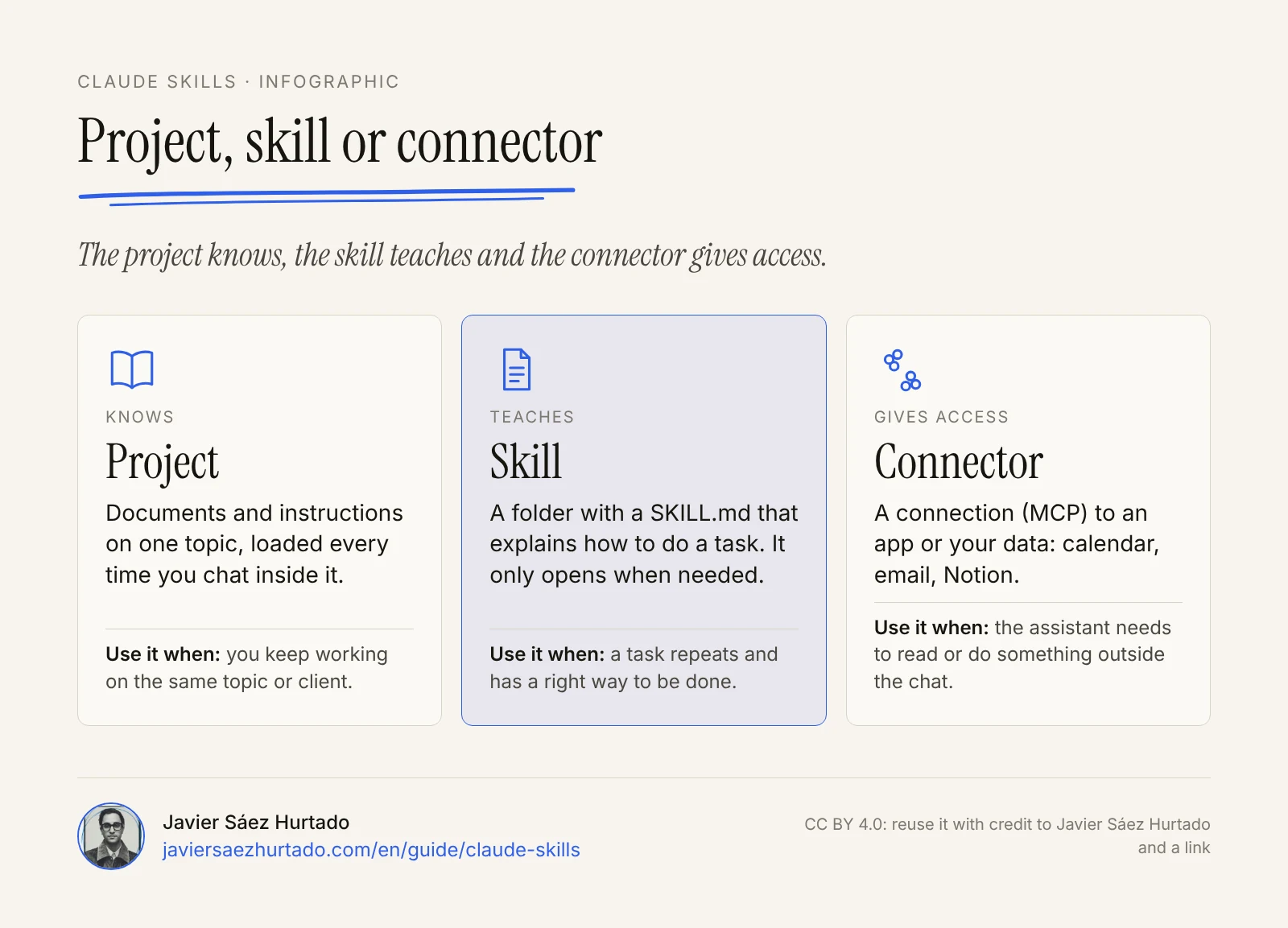
They combine very well. A “plan my week” skill can use the calendar connector to read your meetings and follow your steps to sort them. And if you work with agents, skills are one of their building blocks: the agent does the work and the skill teaches it how. If what you need is a task that runs on its own when something happens, that is a workflow tool like n8n. I go deeper on this in Inside OpenAI agents: skills, plugins, tools and knowledge.
How to create a skill in Claude, step by step
To create a skill in Claude you need code execution turned on, and then you go to Customize > Skills. There are four ways: create it with Claude in a chat, write it yourself in a form, upload a file you already have, or record your screen on Mac. The easiest to start with is the first one, because Claude uses its own skill, skill-creator, which knows the good practices.
- Turn on code execution. In Settings > Capabilities, turn on “Code execution and file creation” (called “Create and edit files” in the newer settings layout). Without it, skills do not show up. On Enterprise, the owner has to allow it first.
- Open Skills. Go to Customize > Skills. You will see your skills and Anthropic’s example skills, each with an on and off switch.
- Click “+” and create one with Claude. A chat opens to build the skill together with skill-creator, starting with questions about what it should do. You can also type it in any chat: “I want to create a skill that turns my meeting notes into minutes.”
- Answer its questions. Claude will ask for concrete examples and what makes a result good. Explain it as you would to a smart new hire, and attach what you have: minutes you like, your template, your rules.
- Read what it writes. Claude writes the
SKILL.md, puts your files in the folder and packages it. Read it before saving: the description says when it will switch on, and the instructions say what it will do. You can highlight any part, click “Edit with Claude” and ask for a change. - Save it and check that it is on. The skill appears in your list in Customize > Skills, with its switch.
- Test it. Open a new chat and paste real notes. Claude will use it only if it fits; to force it, type
/and the skill’s name (/meeting-minutes). Try several different prompts that should trigger it, and if Claude does not pick it up when expected, rewrite the description.
If you prefer to write it yourself, “+ Create skill” also lets you upload a skill: a ZIP with the skill folder at its root (meeting-minutes/SKILL.md, not the files loose in the ZIP). And on Pro, Max, Ultra and Team, in Cowork in the Claude app for Mac, you can record a skill: you do the task once while Claude watches your screen (up to about 10 minutes, narrating if you like) and it proposes a skill for you to review. The help article warns you not to type passwords or show private information while recording.
The template to copy: meeting minutes
This is the full skill from the example. Copy it, change what does not fit the way you work, and save it as SKILL.md inside a folder called meeting-minutes:
---
name: meeting-minutes
description: Turns meeting notes into minutes with decisions, tasks, owners and dates. Use it when I paste notes or a meeting transcript, or ask for minutes.
---

# Meeting minutes

## Steps
1. Read all the notes before writing.
2. List the decisions made, one per line.
3. List the tasks with their owner and due date. If either is missing, write "unassigned" or "no date". Do not make it up.
4. Write the minutes with the template below.
5. End with the open questions, if any.

## Template
**Meeting:** topic · date · attendees

**Decisions**
- ...

**Tasks**
| Task | Owner | Due |
|---|---|---|

**Open questions**
- ...

## Rules
- One page at most.
- No adjectives or opinions: only what was said.
- If the notes mix languages, write the minutes in English.

## Mistakes to avoid
- Turning an idea someone mentioned into a decision.
- Inventing dates, owners or numbers that are not in the notes.
Notice three details. The description uses the words you would use to ask for it. The instructions say what to do when information is missing, instead of letting the model fill the gap. And the mistakes section collects what has already gone wrong: it is the part that improves a skill the most over time.
Skills in ChatGPT: who has them and what happens to custom GPTs
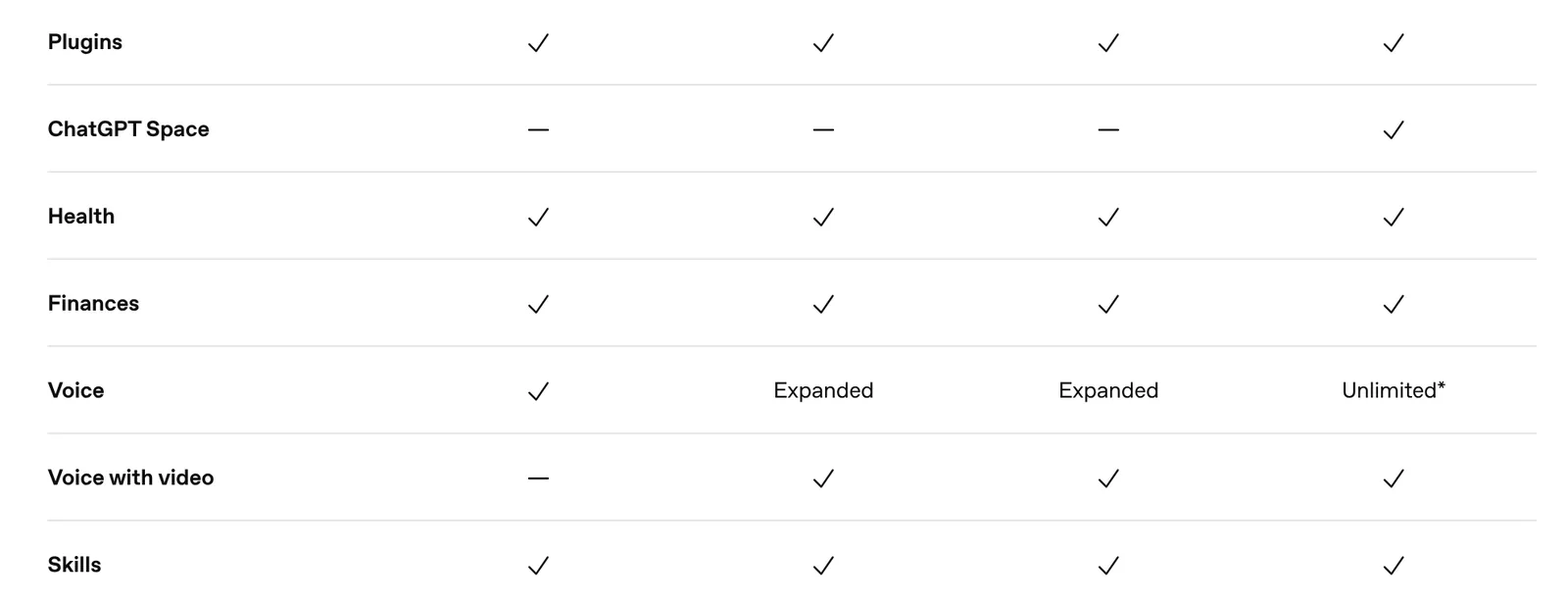
ChatGPT has skills too, and they work like Claude’s: a folder with instructions that ChatGPT uses when they help. On 17 November 2026, the plan comparison on the ChatGPT pricing page lists Skills with a check mark on all four individual plans: Free, Go, Plus and Pro. OpenAI’s help center, though, has described skills for its business plans (Business, Enterprise, Healthcare and Edu), and some features around them, like creating a skill in Work, depend on the plan. The two sources do not fully match yet, so the practical test is to look for Skills under Customize in your own account. To bundle and share them there are plugins, packages that combine one or more skills with connected apps and install in one go.
The big change is for people who use custom GPTs: OpenAI retires them on 11 December 2026 (Enterprise workspaces with an approved delay have until 11 February 2027) and proposes migrating them to plugins. From My GPTs you can migrate a GPT: its instructions become a skill and its files become reference files. The chosen model, custom actions and sharing settings do not move over, and after migrating, the original GPT becomes read-only.
If you have custom GPTs you rely on, do not wait for the last week. Migrate the one you use most, test it with the same prompts you use today and compare the answers before the deadline. I explain skills in ChatGPT step by step, with three examples, in ChatGPT Skills.
Skills in Gemini: how to create them and what happens to Gems
In Gemini, skills are available for personal Google accounts and for Workspace. To create and use them you must be 18 or over and signed in, and for now they work in the Gemini mobile app, the Gemini app for Mac and gemini.google.com. They work with Keep Activity off, but then features that need it, like connected apps (Calendar, Drive), are not available.
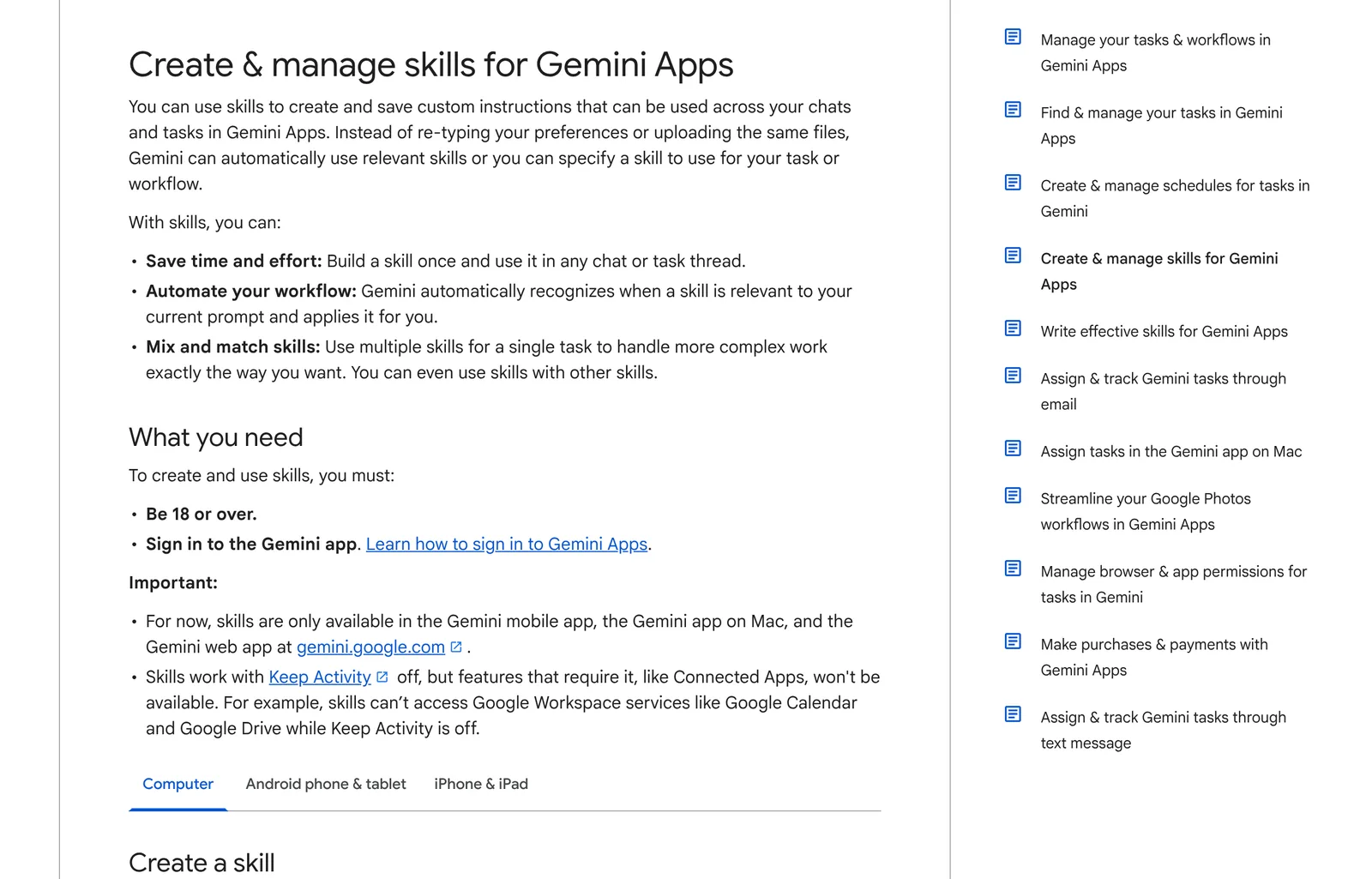
You manage them in Customize, in the sidebar, under the Skills tab. You can create a skill in four ways:
- With Gemini: you explain the task in a chat and it writes the skill. You can also turn something you did in a chat into a skill.
- From a template: pick a prefilled one from Google and adapt it, or start from a blank one.
- By hand: fill in the name, the description and the instructions.
- By uploading: a skill file or a folder with a
SKILL.mdand its supported reference files.
To use a skill, type / in the chat box and pick it (or @, if you have the updated shortcut). Gemini also uses skills on its own when they fit, and you can combine several in the same task, for example a writing style skill and one with your brand rules.
Gems, Gemini’s custom assistants until now, are being turned into skills. Google started the change for personal accounts in November 2026, automatically and with their files; Workspace business accounts follow in March 2027 and education in June 2027. Some tools Gems used (video or music creation, Canvas, Deep Research) do not work inside a skill. If you are deciding between the two assistants, I compare them in ChatGPT vs Gemini.
Claude, ChatGPT and Gemini: skills side by side
All three apps use the same skill format; what changes is who can use them, where you create them and how they switch on:
Skills in Claude, ChatGPT and Gemini
Official help and pricing pages, checked from the US on 17 November 2026
| Claude | ChatGPT | Gemini | |
|---|---|---|---|
| Plans | Free, Pro, Max, Ultra, Team and Enterprise | Free, Go, Plus and Pro on the pricing page; the help center names business plans | Personal accounts and Workspace |
| Where | Customize > Skills | Customize > Skills | Customize > Skills |
| How you create one | With Claude, with a form, by uploading a ZIP, or by recording your screen (Cowork on Mac) | In chat, with the editor or by uploading a skill | With Gemini, from a template, by hand or by uploading |
| How you use it | With / and its name, or on its own when it fits | On its own when it fits | With / or @, or on its own when it fits |
| Requirement | Code execution turned on | Business plans: an admin may need to allow it | 18 or over, signed in |
| What it replaces | Nothing: Claude was first | Custom GPTs (11 Dec 2026) | Gems (from November 2026) |
Common mistakes when building skills
Most skills that fail do so because of how they are written, not because of the tool. These are the most common mistakes:
- A vague description. “Helps with documents” tells the assistant nothing: it either never uses the skill or uses it when it should not. The description has to say what it does and when, in the words of the person asking.
- One skill for everything. A skill that does minutes, emails and reports ends up doing all three halfway. Three small skills are better.
- Explaining what it already knows. You do not need to tell it what minutes are or how to write English. The instructions are for what is yours: your format, your rules, your exceptions.
- Not saying what to do when something is missing. If you do not say, the model will fill the gap with something plausible. Write what to do: ask, write “no data” or stop.
- Putting data in it that should not be there. A skill gets copied, shared and uploaded to other apps. Do not keep passwords, customer data or anything you would not show.
- Installing third-party skills without reading them. They can carry instructions and code. Claude scans uploads automatically, but that does not replace your own reading: Anthropic recommends using only trusted sources and checking the rest first, especially scripts and any network access.
- Not testing it. Test it with three normal cases and one odd one (notes with no dates, a meeting in another language) before you trust it, and again every time you change it.
My take
I would start with one skill, for the task you repeat most each month, not with a collection downloaded from the internet. The first skill you write teaches you more than ten you install: it forces you to explain how you work, and that alone improves the result even if you never use it.
I would let the AI write it, but I would read all of it before saving. It is a short text, and it says exactly what the assistant will do when I am not watching. If a skill touches other people’s data or sends something out (an email, a task in a team tool), I would always give it a final review step: show me the result and wait for my OK. I do not hand off what cannot be undone.
And I would keep my skills in a folder of my own, outside any app. All three use the same format, and that is good news: what you write today in Claude works tomorrow in ChatGPT or Gemini, and you do not depend on one company keeping a feature. Custom GPTs and Gems are the example: whoever kept theirs in a text file loses nothing on 11 December. If you are still choosing an assistant, start with Claude vs ChatGPT.
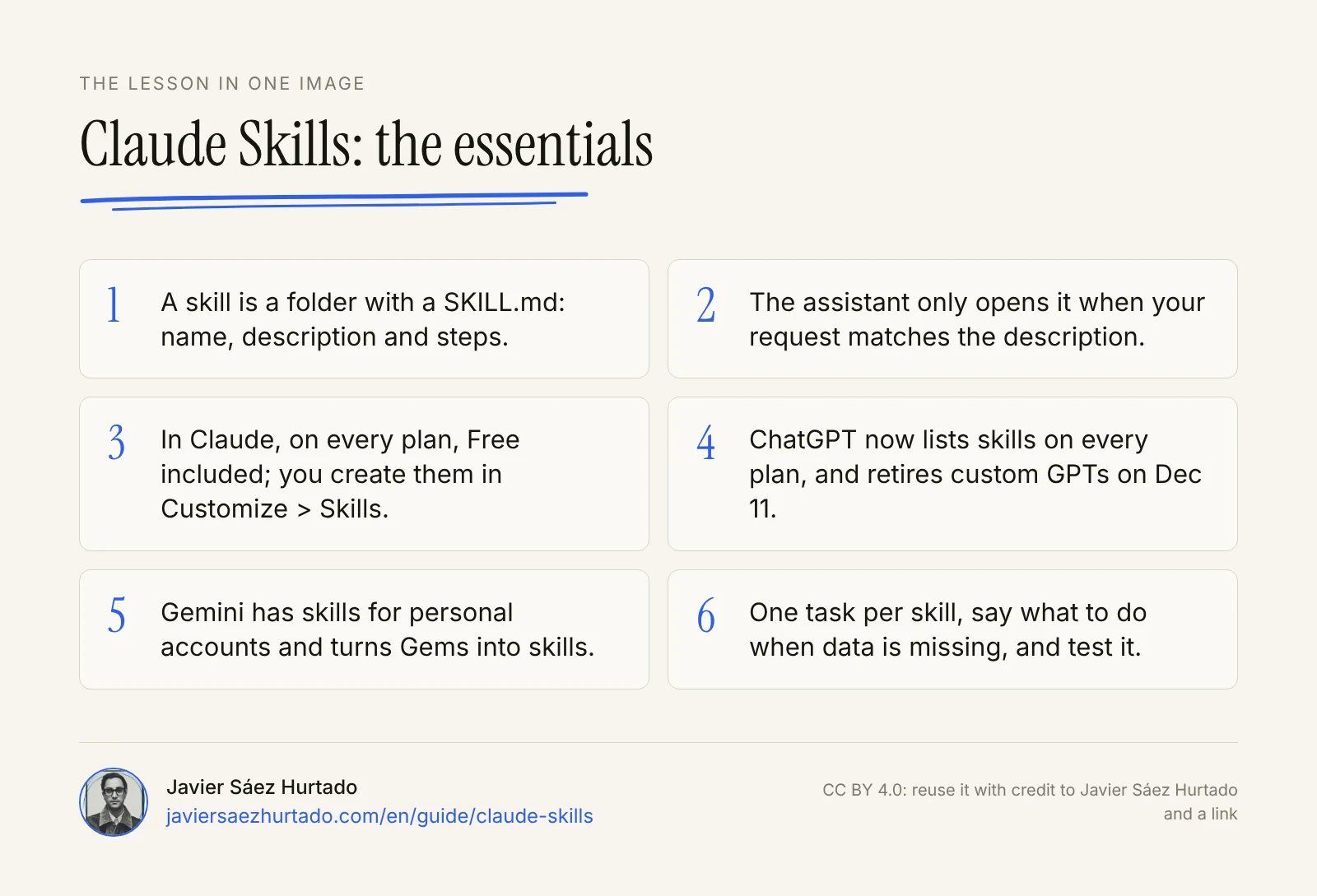
The lesson in one image
FAQ
What are Claude Skills?
They are packages of instructions that teach Claude to do one task the same way every time. Each skill is a folder with a SKILL.md file, which holds its name, a description of when to use it and the steps, and it can include templates, examples or scripts. Claude loads a skill only when what you ask matches its description.
Are Claude Skills free?
Yes. According to the Claude Help Center (checked on 17 November 2026), skills are available on the Free, Pro, Max, Ultra, Team and Enterprise plans, as long as you turn on code execution and file creation in Settings > Capabilities. Recording a skill from your screen is the one part that is not free: it needs Pro, Max, Ultra or Team, in Cowork in the Claude app for Mac.
How do I create a skill in Claude?
Turn on code execution in Settings > Capabilities, go to Customize > Skills and click the “+” button. You can create it with Claude in a chat (it uses its own skill-creator skill), write it yourself in a form, upload a ZIP with your skill folder, or record your screen in Cowork on Mac. Then test it in a new chat with a real example.
What is the difference between a skill and a project?
A project gives fixed background knowledge (documents and instructions) that loads every time you chat inside it. A skill gives a procedure that switches on only when needed, in any chat. A project is the context of a topic; a skill is the way to do a task.
What is the difference between a skill and MCP or a connector?
A connector, which usually runs on MCP, gives access to an app or data: your calendar, Notion, a database. A skill explains what to do with that access and in what order. They work together: the connector opens the door and the skill says what to do inside.
Can I use the same skill in Claude, ChatGPT and Gemini?
In most cases, yes, because all three use the same folder format with a SKILL.md. Keep the name in lowercase with hyphens, the description under 200 characters and the files as text, PDF or images. Scripts that need internet access do not work everywhere.
What happens to my custom GPTs?
OpenAI retires custom GPTs on 11 December 2026 (11 February 2027 for some Enterprise workspaces with an approved delay). Migration is not automatic: in My GPTs you can migrate a GPT to a plugin, which turns its instructions into a skill and copies its files. The chosen model, custom actions and sharing settings do not move over.
Are skills I download from the internet safe?
Not always. A skill can carry instructions and scripts, so a malicious one could do things you do not expect, like sending data out. Anthropic recommends installing only skills from trusted sources and, for the rest, reading all their files first, especially any code and any network calls.
Sources
- Anthropic, Equipping agents for the real world with Agent Skills (16 Oct 2025, updated 18 Dec 2025)
- Claude Help Center, What are skills? (checked on 17 Nov 2026)
- Claude Help Center, Use skills in Claude (checked on 17 Nov 2026)
- Claude Help Center, How to create custom skills (checked on 17 Nov 2026)
- Agent Skills, open standard and specification
- Claude Code Docs, Extend Claude with skills
- ChatGPT, Pricing and plan comparison (checked from the US on 17 Nov 2026)
- OpenAI Help Center, Skills in ChatGPT
- OpenAI Help Center, Custom GPT retirement and migration FAQ
- Visual Studio Magazine, OpenAI replacing custom GPTs with plugins (28 Sep 2026)
- Gemini Apps Help, Create & manage skills for Gemini Apps (checked on 17 Nov 2026)
- Gemini Apps Help, Write effective skills for Gemini Apps
- Gemini Apps Help, About the transition from Gems to skills
- Google, Let skills in Gemini tackle your most repetitive tasks (30 Sep 2026)